Saturday, February 21, 2026

Running FreeBSD (and bhyve!) on Pine Quartz64 Model A

I needed a cheap solution to run bhyve on FreeBSD/arm64. After some research, I decided to try the Quartz64 Model A board.

Requirements for bhyve on arm64 as per vmm(4) are:


     •   arm64: The boot CPU must start in EL2 and the system must have a
         GICv3 interrupt controller.  VHE support will be used if available.

The Quartz64 board satisfies these requirements, so I decided to give it a shot.

FreeBSD installation with u-boot

The FreeBSD Wiki page for Rockchip recommends using the RockPro64 image and using the loader from the sysutils/u-boot-quartz64-a port. It is also possible to use a UEFI-based installation, which I will cover later. I downloaded the latest CURRENT snapshot image for RockPro64 and flashed it to a USB memstick. Then I installed sysutils/u-boot-quartz64-a and flashed the loader to an SD card. I think it's possible to flash everything to the same media, but it's easier for me to have a working loader on the SD card while I experiment with the main OS on the USB memory stick.

The next step is to prepare a USB serial console. I bought one from Pine. Wiring is fairly simple, but do not forget to switch RX/TX.

To connect to the console I used:

sudo minicom -D /dev/cuaU0 -b 1500000

It should be enough to get started.

Issues

I have encountered some issues and limitations. Specifically:

  • The eqos NIC driver detects the device, but fails to attach. Solved by using an external RTL8153 based USB adapter.
  • bhyve(8) might not work if you run a FreeBSD version which does not include this commit.
  • NVMe/PCI does not work.

FWIW, this list is accurate for FreeBSD 16.0-CURRENT as of early/mid Feb 2026.

Not being able to use NVMe was a major deal breaker for me as it's not possible to get decent I/O rates without it, so I decided to test the UEFI approach.

FreeBSD installation with UEFI

For this setup, I kept my original memstick I used together with the u-boot SD card. Then I replaced the u-boot SD card with another one on which I flashed Quartz64 UEFI.

The console setup for it is somewhat different, so I used: cu -s 115200 -l /dev/ttyU0 to connect to it. Another detail: it allows you to enter the configuration menu before booting and choose one of UEFI, UEFI+devicetree, or devicetree modes. I'm using the UEFI mode.

The rest is fairly similar to the u-boot option.

What's different? The main difference for me is that NVMe finally works. Bhyve also works. However, there are some limitations, specifically:

  • Built-in devices are not detected without a device tree. That means no eMMC, no NIC, and maybe others.

I decided to settle on the UEFI option because I have an external USB NIC anyway, and NVMe is more important than eMMC to me. And bhyve works fine in this mode.

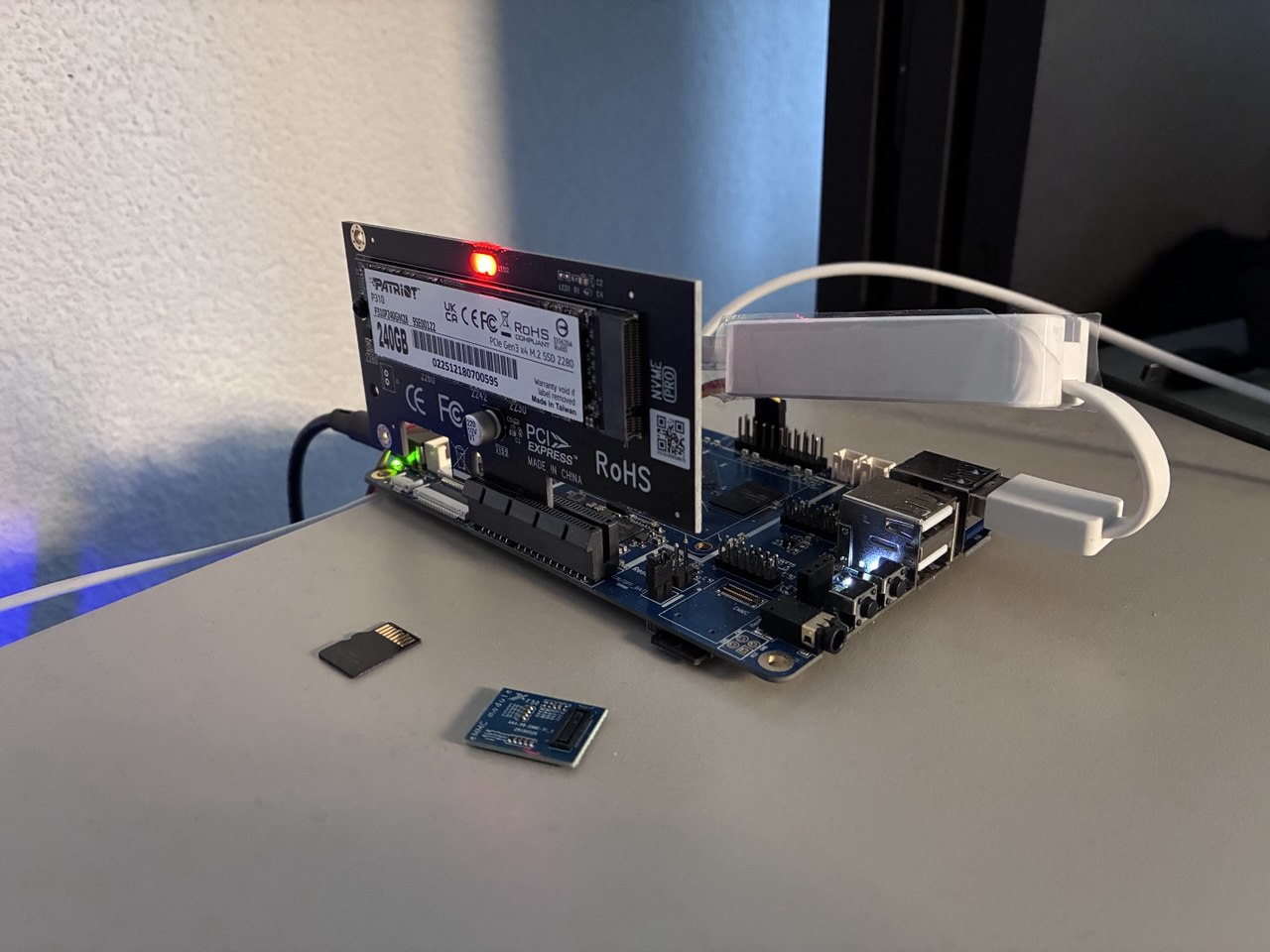
Here is how it looks now:

And the dmesg.

Sunday, January 4, 2026

Running bhyve Virtual Machines in a Jail

A couple of months ago I briefly described a libvirt CI setup that I run to make sure libvirt/bhyve keeps working.

One thing I'd like to cover in more depth is running bhyve in a jail. Why is that needed in the first place? My primary motivation was separating the host's libvirt instance from the one being tested. It also helps ensure that the host configuration and packages do not interfere with the ones being tested. I imagine, however, that there could be more cases where running bhyve in a jail makes sense, for example as an additional security measure.

I use Bastille to manage my jails, but the concept is the same for plain jails and probably other jail management software as well.

The settings I have in my Bastillefile are as follows. Some of these are not strictly required to run bhyve(8), but may be necessary to run libvirt, pf, and related tools. It is up to the reader to trim down anything that seems unnecessary.

CONFIG set allow.chflags=1;
CONFIG set allow.raw_sockets=1;

CONFIG set allow.vmm=1;
CONFIG set allow.mount;
CONFIG set allow.mount.devfs;
CONFIG set allow.mount.fdescfs;
CONFIG set allow.mount.procfs;
CONFIG set mount.devfs;
CONFIG set mount.fdescfs;
CONFIG set mount.procfs;
CONFIG set devfs_ruleset="44";

/etc/devfs.rules looks like this:

[devfs_rules_bhyve_jail=44]
add include $devfsrules_jail
add path vmm unhide
add path vmm/* unhide
add path tap* unhide
add path mem unhide
add path kmem unhide
add path nmdm* unhide
add path pci unhide
add path io unhide
add path pf unhide

As you can see, this also includes some extra stuff, such as pf, which you are of course free to remove or adjust to your liking.

And that's it -- this should be enough to get you started with running bhyve(8) in jail(8).

Saturday, September 20, 2025

Tutorial: managing bhyve virtual machines using virt-manager

The goal of this tutorial is to help you get started with virt-manager on FreeBSD for managing bhyve VMs. We’ll go through installation and basic configuration, and then set up a FreeBSD guest.

Installation

To install virt-manager, run:

# pkg install virt-manager

This will also pull in libvirt as a dependency.

Configuration

Edit /etc/rc.conf and add:

libvirtd_enable="YES"

You can validate your setup by running:

# virt-host-validate
 BHYVE: Checking for vmm module                                              : PASS
 BHYVE: Checking for if_tap module                                           : WARN (if_tap module is not loaded, networking will not work)
 BHYVE: Checking for if_bridge module                                        : PASS
 BHYVE: Checking for nmdm module                                             : PASS
#

The if_tap warning isn’t critical if it’s compiled into your kernel.

Next, adjust libvirt’s control socket permissions. Edit /usr/local/etc/libvirt/libvirtd.conf and add:

unix_sock_group = "wheel"
unix_sock_rw_perms = "0770"

The last prep step is to add a default network:

# cp /usr/local/share/examples/libvirt/networks/default.xml /usr/local/etc/libvirt/qemu/networks
# ln -s ../default.xml /usr/local/etc/libvirt/qemu/networks/autostart/default.xml

Now start libvirtd:

# service libvirtd start
Starting libvirtd.
#

And then start virt-manager:

$ virt-manager

Creating a VM

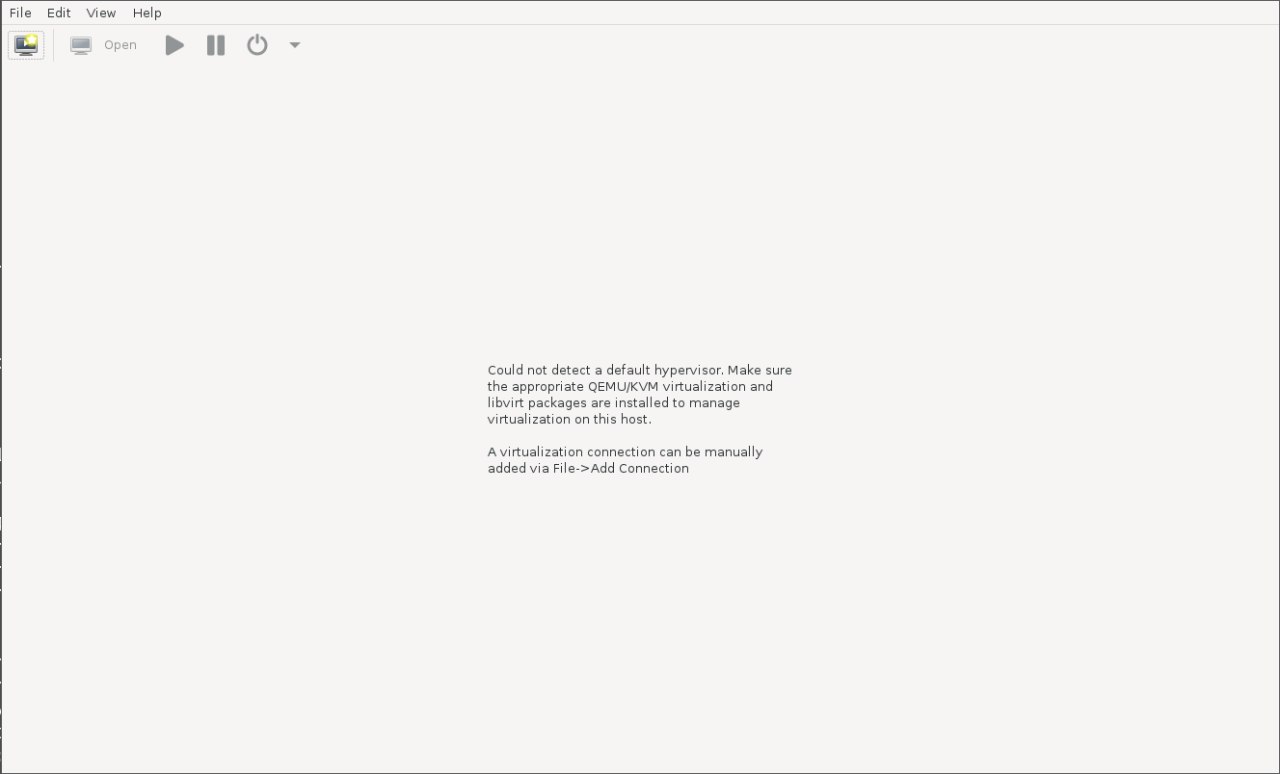
virt-manager initial screen

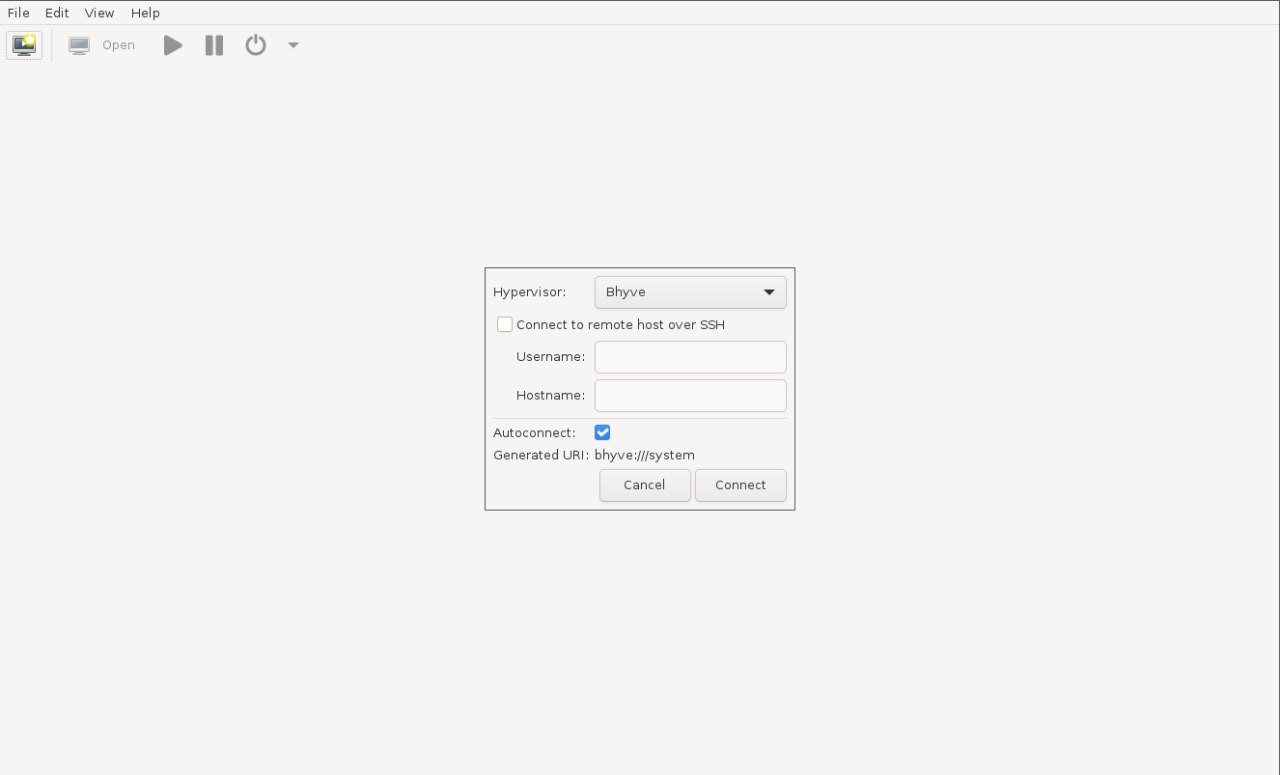
Go to "File" → "Add Connection", choose bhyve:

Add Connection screen

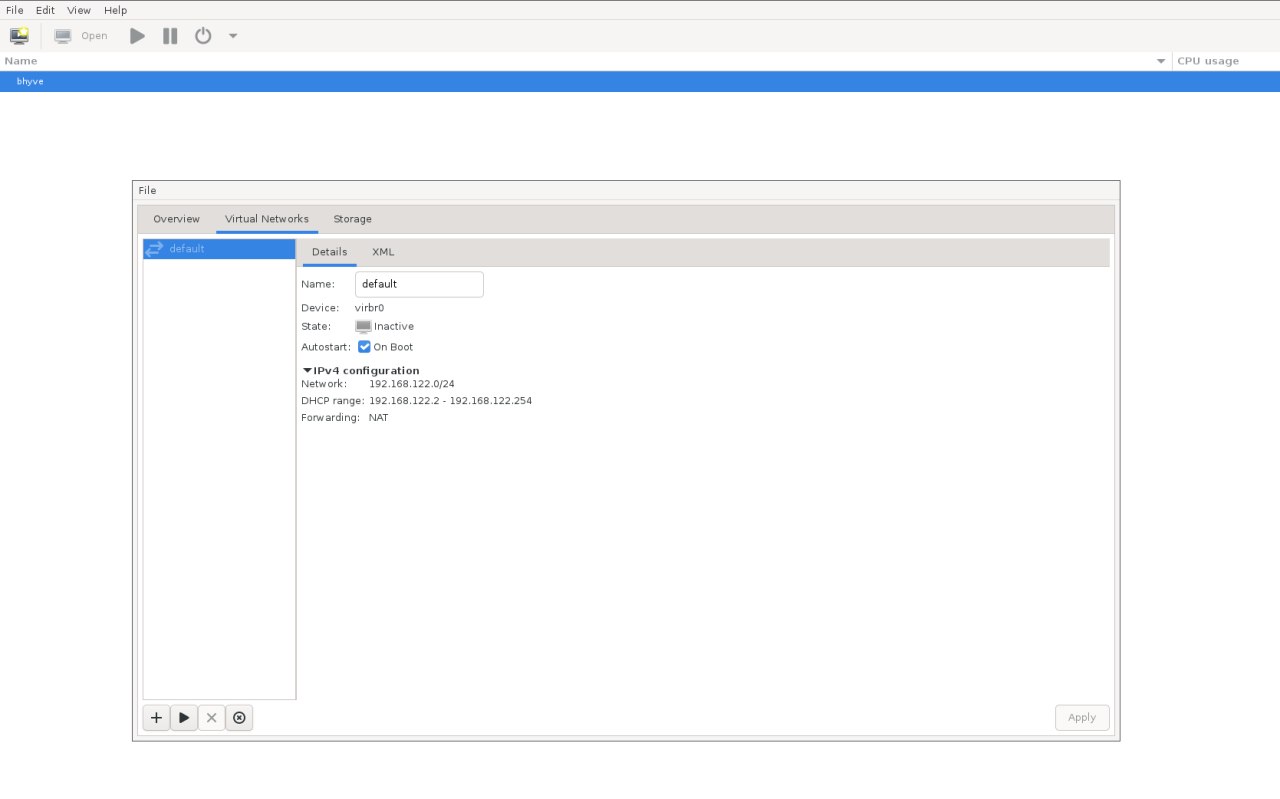
Click "bhyve", then open the "Virtual Networks" tab. You should see the default network listed:

Virtual network dialog

Press the "Play" button to start it.

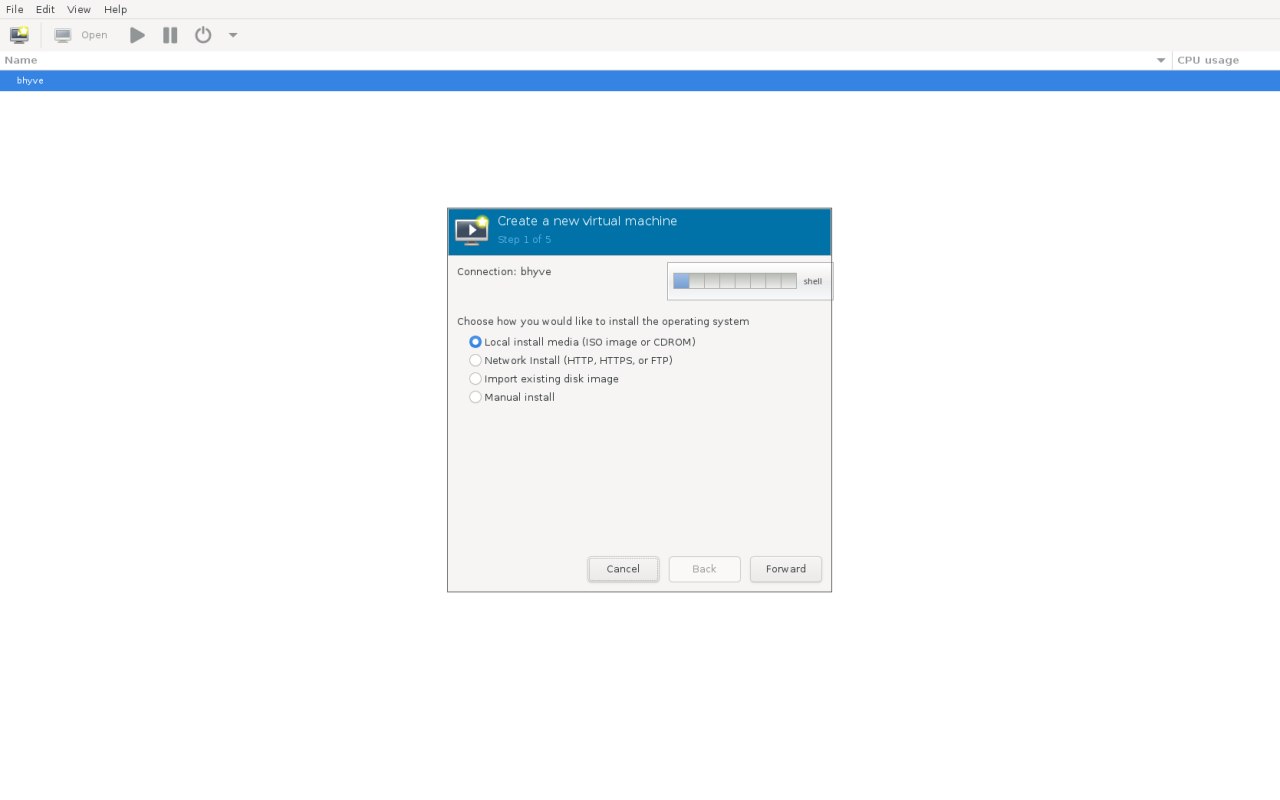
Now create a new VM: "File" → "New Virtual Machine".

VM install dialog

Choose "Local install media" → "Forward". Then click "Browse" to select an ISO.

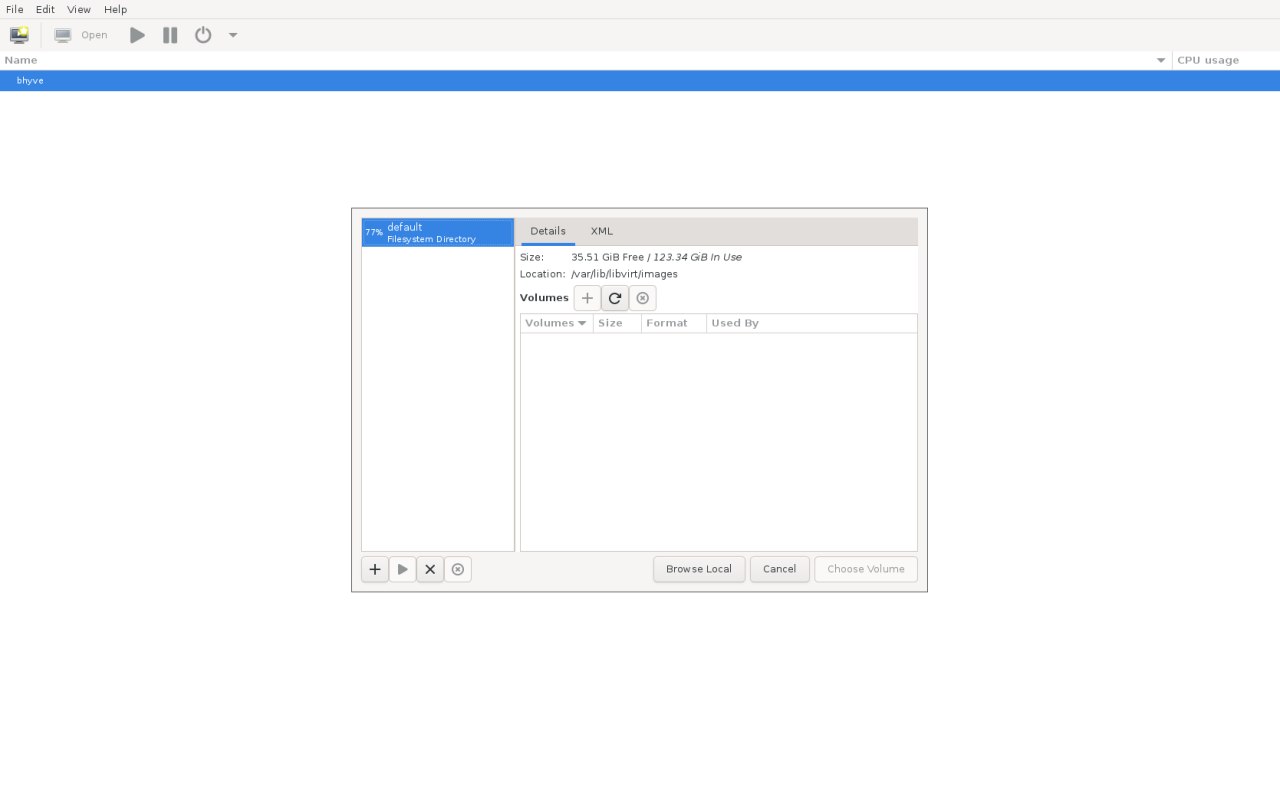
VM storage dialog

By default it shows /var/lib/libvirt/images, but you can pick an ISO from your home directory with "Browse Local".

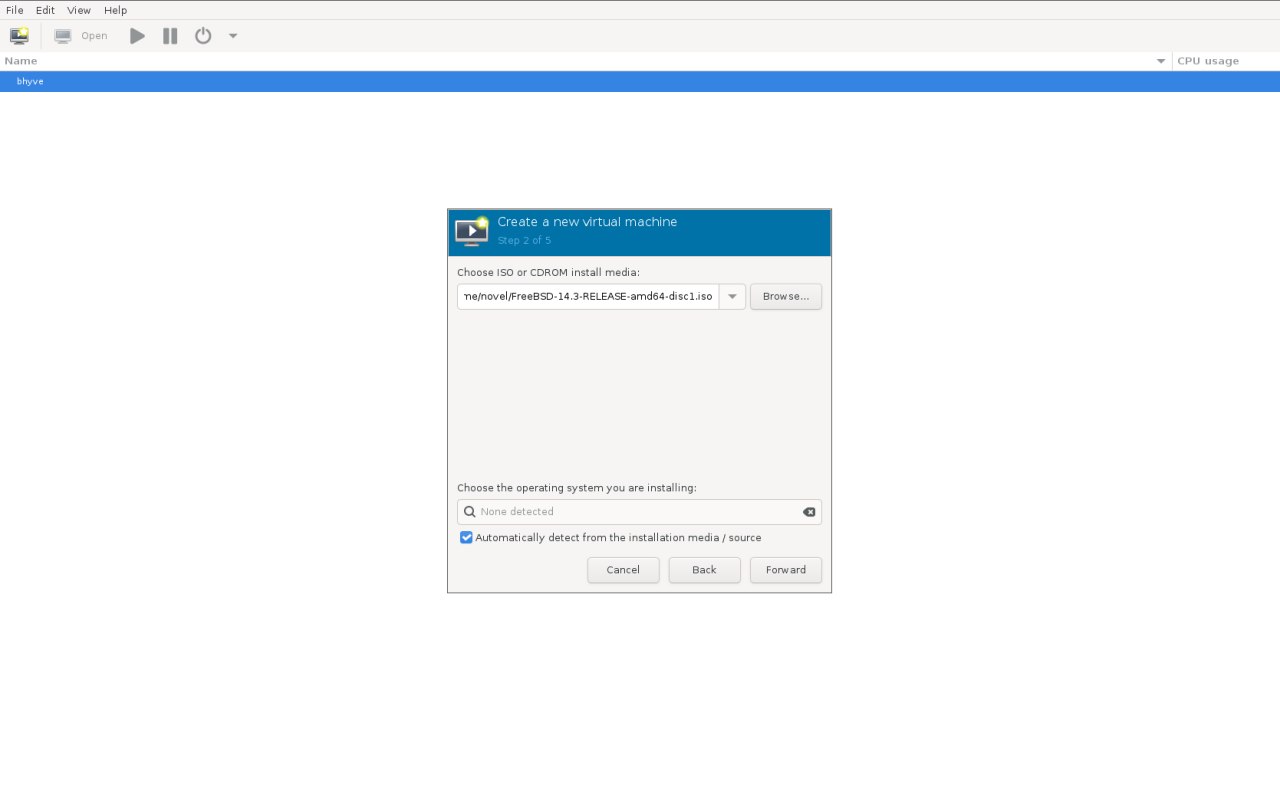
VM choosing local media

Uncheck "Automatically detect from the installation media / source", search for "FreeBSD", and select "FreeBSD 14.2". (The auto-detection is buggy right now.)

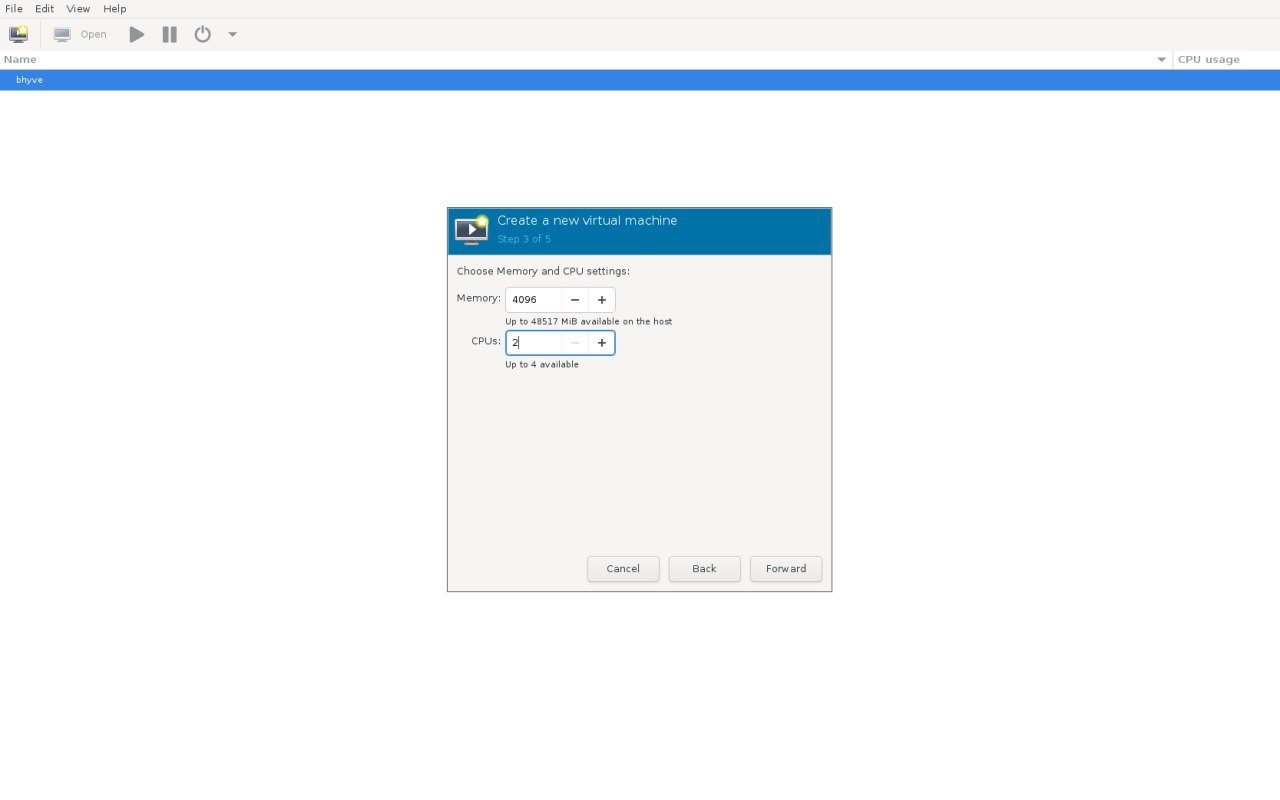
The next step is CPU and memory setup — straightforward.

RAM and CPU dialog

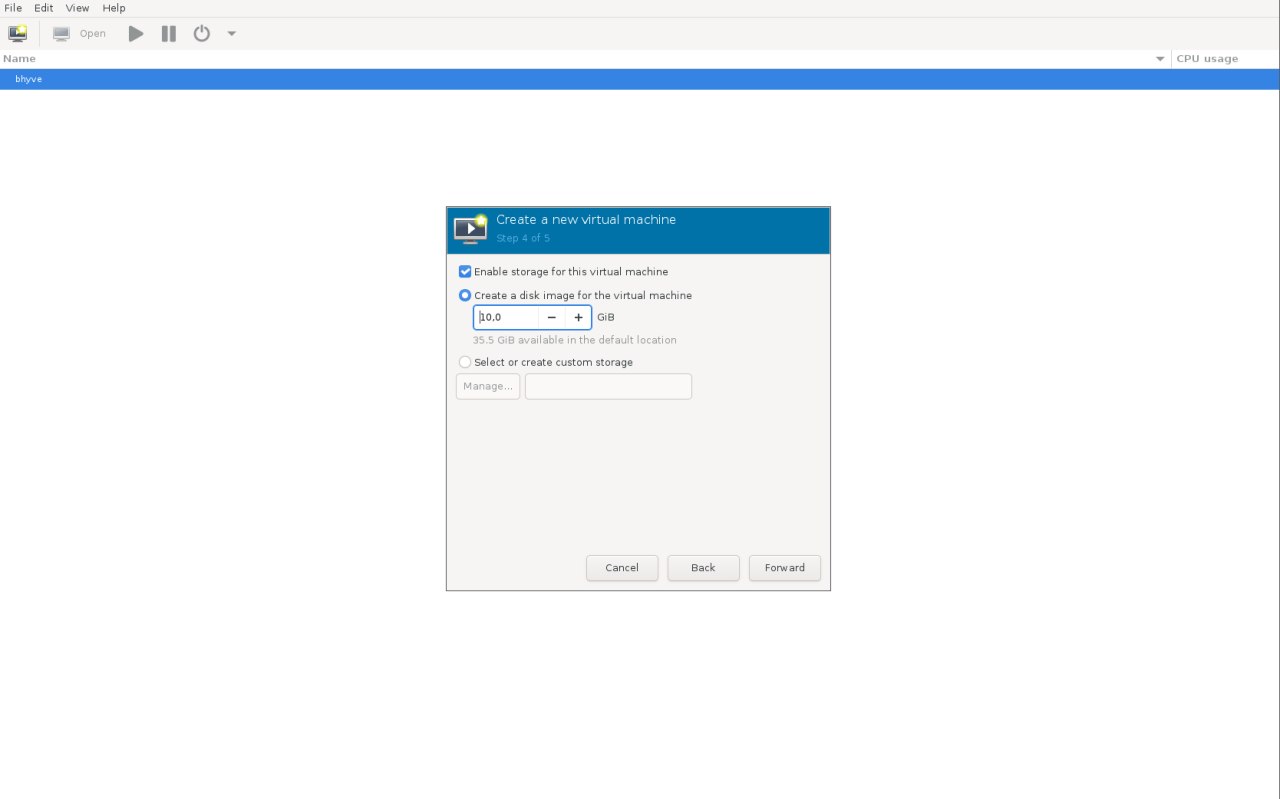
Then configure storage:

VM storage configuration

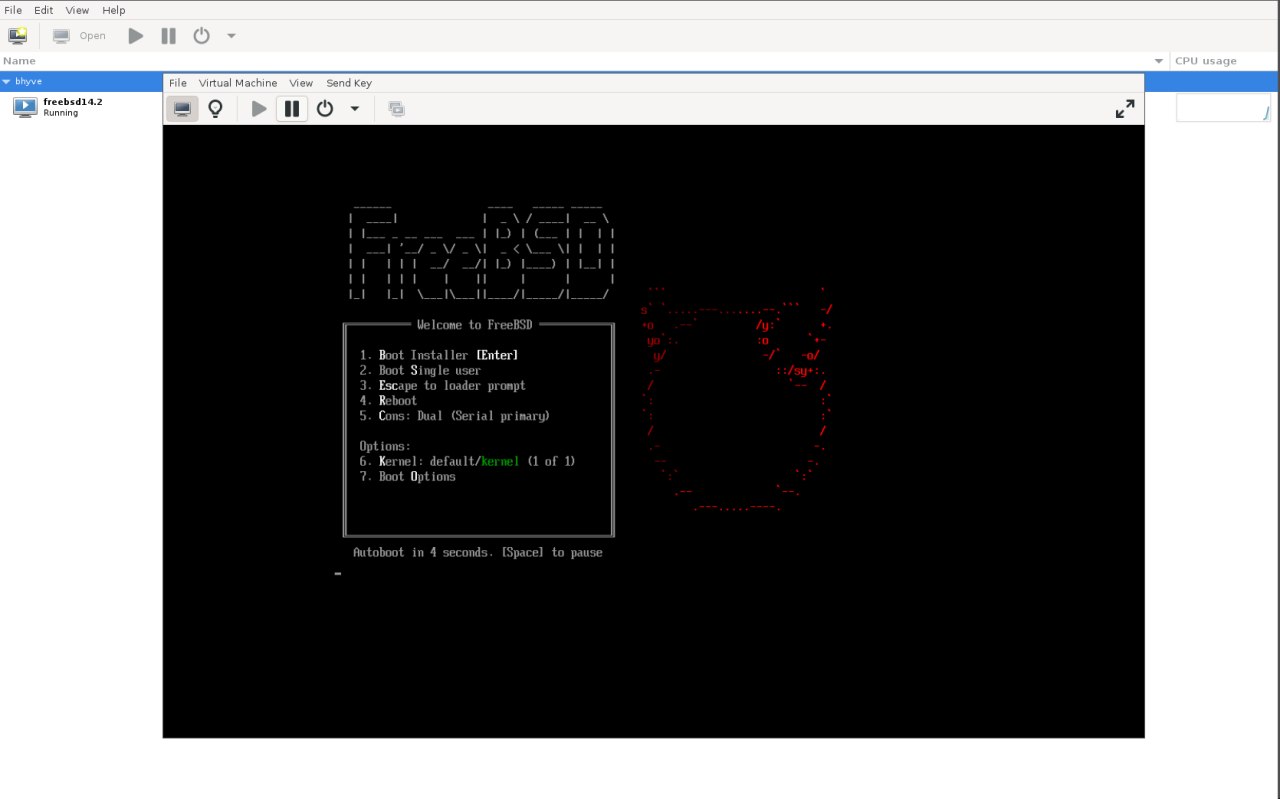
If everything’s correct, you’ll see the FreeBSD installer:

Installer

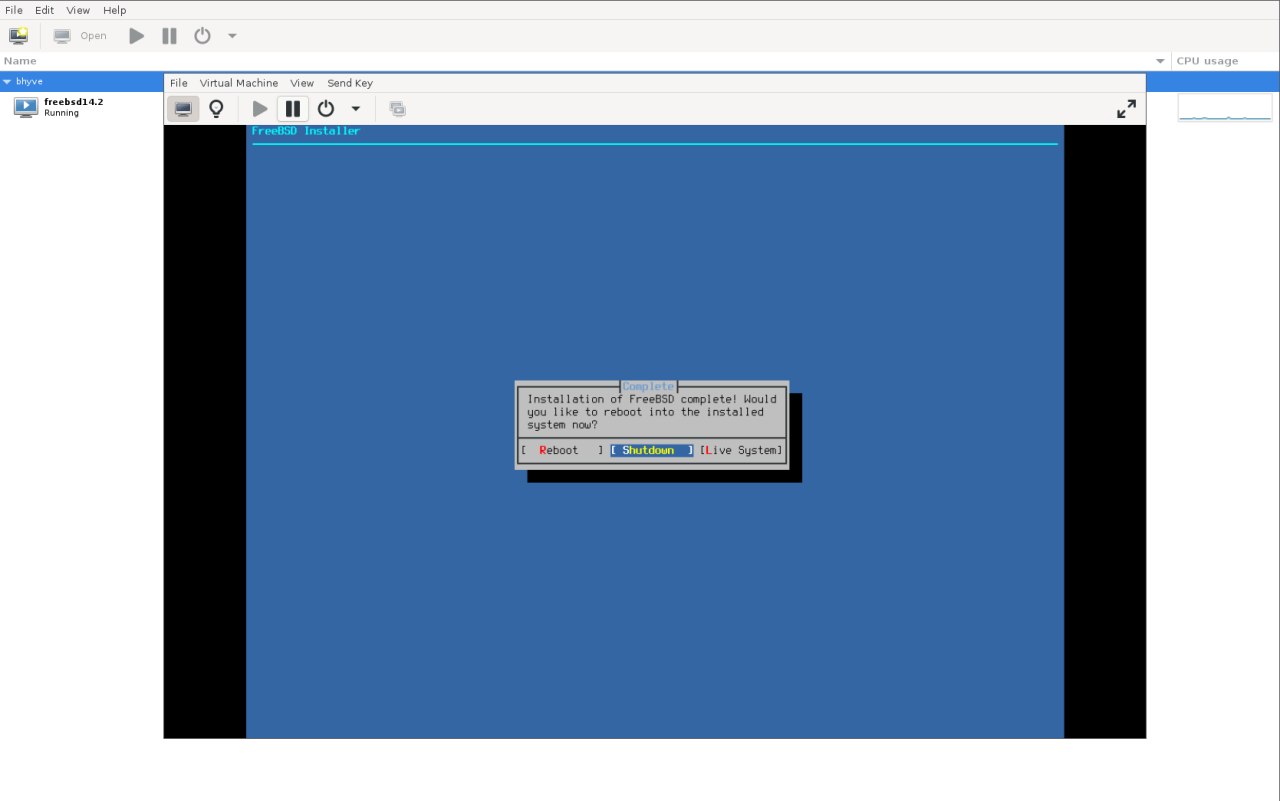
I’ll let you handle the installation itself. The only important bit: at the end, make sure you shut the VM down. Boot order isn’t supported yet, so you don’t want to boot from the ISO again.

Installation complete

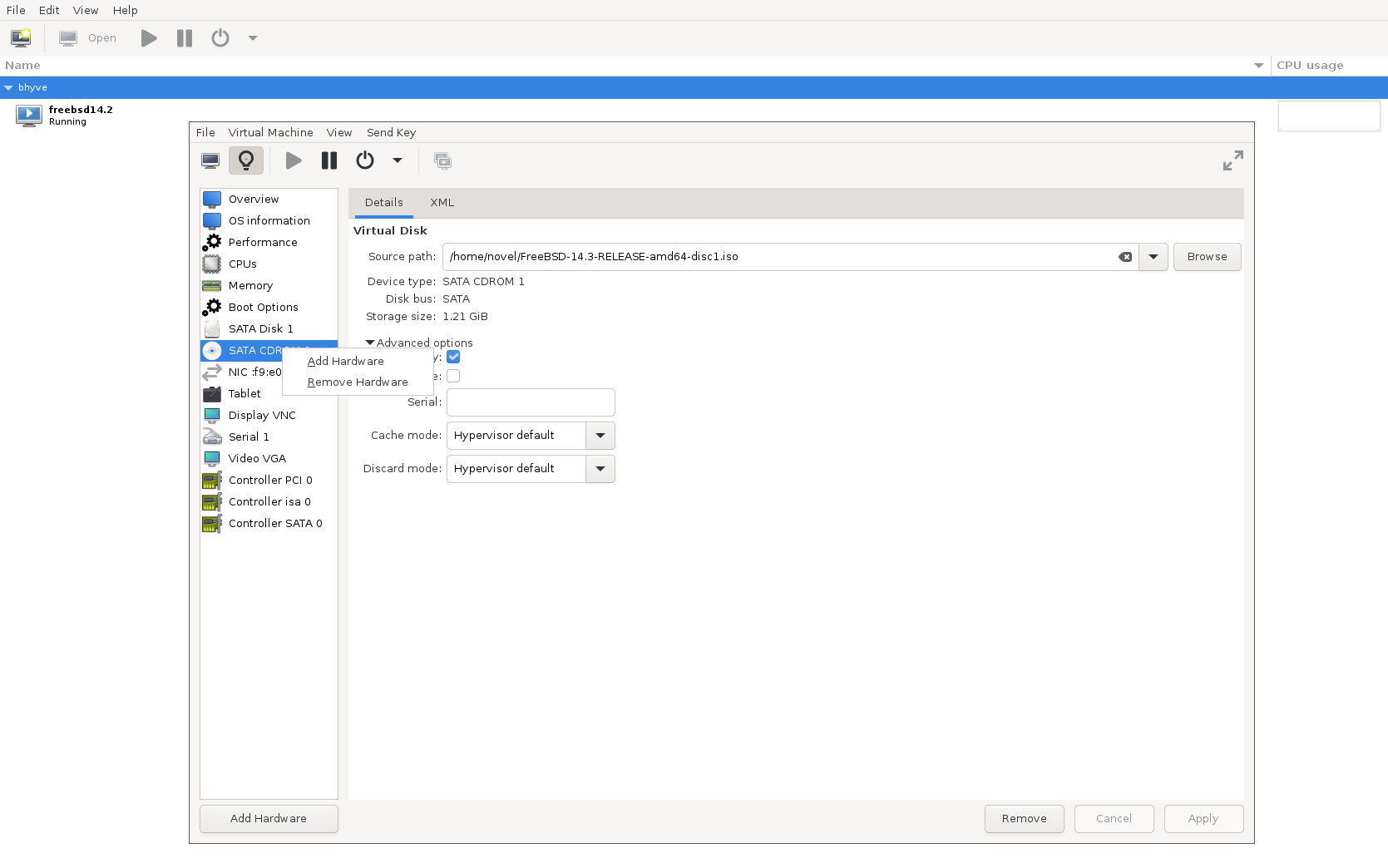
Once shut down, open "View" → "Details", find "SATA CDROM 1", right-click, and choose "Remove Hardware".

Remove CDROM

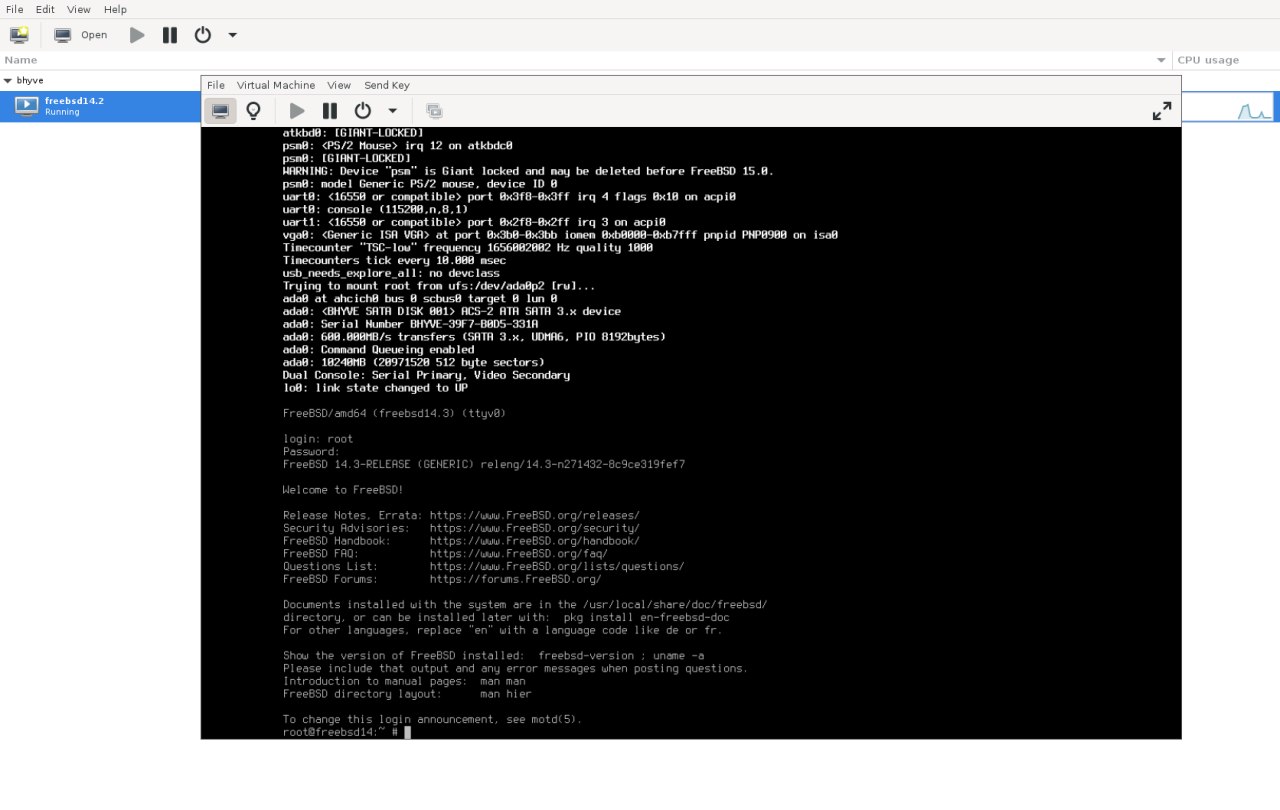
Now start the VM again — you should boot straight into your new FreeBSD system:

Fresh VM boot

That’s it for now. I plan to fix a few rough edges to make things smoother. In the meantime, feel free to send me suggestions or bug reports at novel@FreeBSD.org, or open a PR in FreeBSD Bugzilla.

Sunday, September 14, 2025

CI for libvirt/bhyve on FreeBSD

This year, I was lucky to be sponsored by the FreeBSD Foundation to improve libvirt's FreeBSD integration. One of the areas of focus was enabling CI. Actually, I had wanted to have some form of CI for a while, as manually testing things is quite time-consuming. Quite often, I don’t have enough time to test RC releases, so sometimes the releases ship with issues on FreeBSD. I knew about the libvirt TCK project (TCK stands for "Technology Compatibility Kit"), but I wasn’t sure whether it would be easier to implement my own testing routine or port the existing one to run on FreeBSD.

When I started this project, I decided to re-evaluate libvirt-tck, because it makes much more sense to re-use the existing tests—even if the initial porting requires more effort—than to implement everything from scratch.

The first steps of getting libvirt-tck to run were a bit tricky, because it starts with image generation using virt-builder. The virt-builder tool is part of libguestfs, which has not been ported to FreeBSD. I imagine porting libguestfs is not a trivial task, and it has been listed on the FreeBSD Wanted Ports list for a while. I didn’t want to dig into porting libguestfs, so I tried a few different workarounds—for example, creating a wrapper script to run virt-builder on a Linux host via SSH, then copying the resulting image with scp or using a shared partition. I also tried running it with Linuxulator. These methods had mixed success, but I later realized that once the image is generated, it can be reused for subsequent runs. It’s not ideal, but it works for now. With the image available, I could move on to the next phase: adjusting the tests themselves. This mainly involved handling cases where bhyve doesn’t support certain features and making a few patches to libvirt’s driver.

Some of that work was not very exciting, but it did result in new features being implemented, such as virtio-rnd support. Sometimes it was simply easier to add a missing feature than to handle its absence. It took a few merge requests to libvirt-tck and a few libvirt releases to get things working, but eventually the main set of tests I wanted to run worked fine. These tests include:

  • domain
  • networks
  • storage

The main tests I wanted to run were successful: domain, networks, and storage. However, there are still a few test groups that I don’t run, either because they aren’t relevant or aren’t supported on FreeBSD:

  • hooks
  • nwfilter
  • qemu
  • selinux

I think I need to take a closer look at the hooks tests. In the future, libvirt on FreeBSD might gain nwfilter support, so those tests could become relevant, but it’s unlikely to happen soon. I had no plans to support the qemu driver on FreeBSD (why, when bhyve is available?), but with the vmm(4) accelerator support for QEMU, it might become useful. And selinux is obviously not applicable.

The final part was Jenkins configuration. Frankly, I don’t have much experience configuring Jenkins, though I do use it fairly often at work.

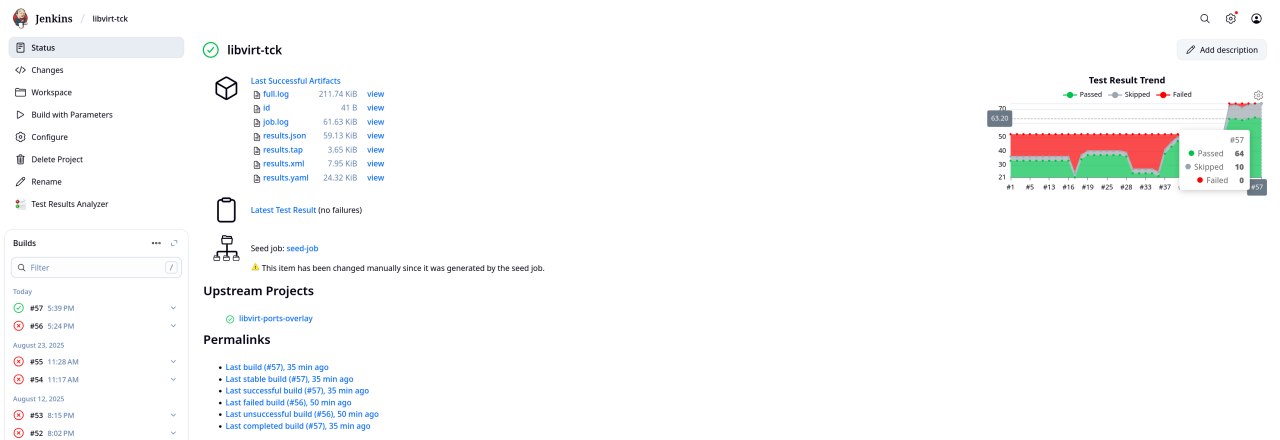
My "pipeline" (which is not really a pipeline in the strict sense) consists of two steps:

  • Build a "-devel" version of the libvirt port (pointing to a Git repository) using poudriere(8), and publish the results to a package repo.
  • Spin up a BastilleBSD container, install the libvirt packages from the previous step, check out libvirt-tck from Git, run the tests, and publish the results.

I use the "Job DSL" plugin to store job configuration, which is available in the Git repo. While the setup works, there are still several areas I’d like to improve:

  • I’d like to figure out how to build an arbitrary Git revision of the port, without updating DISTVERSION in Makefile or the checksums in distinfo. Probably it would be easier to just build libvirt manually. That would also simplify the pipeline.
  • I need to see if I can store not only job configurations in plain text, but also a complete Jenkins configuration, so I don’t have to manually install plugins and so on.
  • I definitely need to script the test image creation process.
libvirt tck jenkins

Saturday, October 19, 2019

urbandict 0.6.1

I've released a new version of urbandict, a Python client and a CLI tool for https://urbandictionary.com. Version 0.6.1 includes support for word categories, that, apparently, was recently added by urbandictionary.

You can upgrade it using pip install --upgrade urbandict or grab source code on github.

Saturday, June 2, 2018

Configuring OpenBGPD to announce VM's virtual networks

We use BGP quite heavily at work, and even though I'm not interacting with that directly, it feels like it's something very useful to learn at least on some basic level. The most effective and fun way of learning technology is finding some practical application, so I decided to see if it could help to improve networking management for my Virtual Machines.

My setup is fairly simple: I have a host that runs bhyve VMs and I have a desktop system from where I ssh to VMs, both hosts run FreeBSD. All VMs are connected to each other through a bridge and have a common network 10.0.1/24. The point of this exercise is to be able to ssh to these VMs from desktop without adding static routes and without adding vmhost's external interfaces to the VMs bridge.

I've installed openbgpd on both hosts and configured it like this:

vmhost: /usr/local/etc/bgpd.conf

AS 65002
router-id 192.168.87.48
fib-update no

network 10.0.1.1/24

neighbor 192.168.87.41 {
    descr "desktop"
    remote-as 65001
}

Here, router-id is set vmhost's IP address in my home network (192.168.87/24), fib-update no is set to forbid routing table update, which I initially set for testing, but keeping it as vmhost is not supposed to learn new routes from desktop anyway. network announces my VMs network and neighbor describes my desktop box.

Now the desktop box:

desktop: /usr/local/etc/bgpd.conf

AS 65001
router-id 192.168.87.41
fib-update yes

neighbor 192.168.87.48 {                                                                                                                                                                                           
        descr "vmhost"                                                                                                                                                                                             
        remote-as 65002                                                                                                                                                                                            
}

It's pretty similar to vmhost's bgpd.conf, but no networks are announced here, and fib-update is set to yes because the whole point is to get VM routes added.

Both hosts have to have the openbgpd service enabled:

/etc/rc.conf.local

openbgpd_enable="YES"

Now start the service (or wait until next reboot) using service openbgpd start and check if neighbors are there:

vmhost: bgpctl show summary

$ bgpctl show summary                                                                                                                                                                    
Neighbor                   AS    MsgRcvd    MsgSent  OutQ Up/Down  State/PrfRcvd                                                                                                                                   
desktop                 65001       1089       1090     0 09:03:17      0                                                                                                                                          
$

desktop: bgpctl show summary

$ bgpctl show summary
Neighbor                   AS    MsgRcvd    MsgSent  OutQ Up/Down  State/PrfRcvd
vmhost                  65002       1507       1502     0 09:04:58      1
$

Get some detailed information about the neighbor:

desktop: bgpctl sh nei vmhost

$ bgpctl sh nei vmhost                                                                                                                                                                    
BGP neighbor is 192.168.87.48, remote AS 65002                                                                                                                                                                     
 Description: vmhost                                                                                                                                                                                               
  BGP version 4, remote router-id 192.168.87.48                                                                                                                                                                    
  BGP state = Established, up for 09:06:25                                                                                                                                                                         
  Last read 00:00:21, holdtime 90s, keepalive interval 30s                                                                                                                                                         
  Neighbor capabilities:                                                                                                                                                                                           
    Multiprotocol extensions: IPv4 unicast                                                                                                                                                                         
    Route Refresh                                                                                                                                                                                                  
    Graceful Restart: Timeout: 90, restarted, IPv4 unicast                                                                                                                                                         
    4-byte AS numbers                                                                                                                                                                                              
                                                                                                                                                                                                                   
  Message statistics:                                                                                                                                                                                              
                  Sent       Received                                                                                                                                                                              
  Opens                    3          3                                                                                                                                                                            
  Notifications            0          2                                                                                                                                                                            
  Updates                  3          6                                                                                                                                                                            
  Keepalives            1499       1499                                                                                                                                                                            
  Route Refresh            0          0                                                                                                                                                                            
  Total                 1505       1510                                                                                                                                                                            
                                                                                                                                                                                                                   
  Update statistics:                                                                                                                                                                                               
                  Sent       Received                                                                                                                                                                              
  Updates                  0          1                                                                                                                                                                            
  Withdraws                0          0                                                                                                                                                                            
  End-of-Rib               1          1                                                                                                                                                                            
                                                                                                                                                                                                                   
  Local host:         192.168.87.41, Local port:    179                                                                                                                                                            
  Remote host:        192.168.87.48, Remote port: 13528                                                                                                                                                            
                                                                                                                                                                                                                   
$

By the way, as you can see, bgpctl supports shortened commands, e.g. sh nei instead of show neighbor.

Now look for that VMs route:

desktop: bgpctl show rib

$ sudo bgpctl show rib
flags: * = Valid, > = Selected, I = via IBGP, A = Announced, S = Stale
origin: i = IGP, e = EGP, ? = Incomplete

flags destination          gateway          lpref   med aspath origin
*>    10.0.1.0/24          192.168.87.48      100     0 65002 i
$

So that VMs network, 10.0.1/24, it's there! Now check if the system routing table was updated and has this route:

desktop

$ route -n get 10.0.1.45   
   route to: 10.0.1.45
destination: 10.0.1.0                                                                                                                                                                                              
       mask: 255.255.255.0                                                                                                                                                                                         
    gateway: 192.168.87.48                                                                                                                                                                                         
        fib: 0                                                                                                                                                                                                     
  interface: re0                                                                                                                                                                                                   
      flags:                                                                                                                                                                               
 recvpipe  sendpipe  ssthresh  rtt,msec    mtu        weight    expire                                                                                                                                             
       0         0         0         0      1500         1         0                                                                                                                                               
$ ping -c 1 10.0.1.45                                                                                                                                                                     
PING 10.0.1.45 (10.0.1.45): 56 data bytes                                                                                                                                                                          
64 bytes from 10.0.1.45: icmp_seq=0 ttl=63 time=0.192 ms                                                                                                                                                           
                                                                                                                                                                                                                   
--- 10.0.1.45 ping statistics ---                                                                                                                                                                                  
1 packets transmitted, 1 packets received, 0.0% packet loss                                                                                                                                                        
round-trip min/avg/max/stddev = 0.192/0.192/0.192/0.000 ms                                                                                                                                                         
$

Whoa, things work as expected!

Conclusion

As mentioned already, similar result could be achieved without using BGP by using either static routes or bridging interfaces differently, but the purpose of this exercise is to get some basic hands-on experience with BGP. Right now I'm looking into extending my setup in order to try more complex BGP schema. I'm thinking about adding some software switches in front of my VMs or maybe adding a second VM host (if budget allows). You're welcome to comment if you have some ideas how to extend this setup for educational purposes in the context of BGP and networking.

As a side note, I really like openbgpd so far. Its configuration file format is clean and simple, documentation is good, error and information messages are clear, and CLI has intuitive syntax.

Saturday, December 16, 2017

Configuring macOS-like screenshotting in Openbox

For many years my way of taking screenshots was pretty trivial. I would execute something like sleep 5 && import -window root screenshot.png, switch over to the virtual desktop I want to screenshot and get this png file. If I need to have only some part of it, I'd cut it in GIMP.

A couple of years back when I've started using macOS at work, I googled up it screenshotting shortcuts. They seemed pretty weird, e.g. Command-Control-Shift-3, where 3 means entire screen and 4 means a user-selected region. While I don't know if there's some logic in choosing 3 and 4 for that (why not any other numbers?), I found that it's extremely convenient to take a screenshot of part of the screen and save it to a clipboard. Moreover, I found that I use this feature almost every day to capture parts of terminal window, highlighting some interesting bits from websites for posting on IM and other stuff where image is better than text.

Of course, when I'm running Openbox, using Gimp to achieve the same things starts feeling extremely cumbersome, so I decided to configure Openbox to have similar keybindings for taking screenshots.

First, I wrote a shell script to make things a little easier: screenshot.sh. It uses the import tool from ImageMagick and xclip.

It just accepts two options:

  • -r (stands for rootwindow) tells to capture entire screen, otherwise user has to select a region,
  • -f (stands for file) tells to save a screenshot to a file (name will be auto-generated and include date), otherwise saves a screenshot into a clipboard.

And, finally, keybindings configuration for ~/.config/openbox/rc.xml:

    <keybind key="A-S-3">
      <action name="execute">
        <execute>~/bin/screenshot.sh -r -f</execute>
      </action>
    </keybind>
    <keybind key="A-S-W-3">
      <action name="execute">
        <execute>~/bin/screenshot.sh -r</execute>
      </action>
    </keybind>
    <keybind key="A-S-4">
      <action name="execute">
        <execute>~/bin/screenshot.sh -f</execute>
      </action>
    </keybind>
    <keybind key="A-S-W-4">
      <action name="execute">
        <execute>~/bin/screenshot.sh</execute>
      </action>
    </keybind>

Help on Openbox keybindings configuration is here.